ONE.class
Two apps. One live classroom.
A two-sided EdTech platform for live, gamified learning — synced teacher and student apps, on any device.
Project at a glance
ONE.class is a live virtual classroom that runs as two connected apps — one for the teacher, one for the student — kept in real-time sync. We designed both sides of the experience: teaching, presenting, shared reading, gamified quizzes, exams and results.
UX / UI design — both apps (with one other UX designer)
School students in the USA & their teachers
One app for any platform — iOS · Android · Windows
Figma · FigJam — role-based, two-sided system
Keeping a live class engaged
- Remote learning goes passive On a screen, attention drifts — kids tune out of a one-way lecture.
- Two sides, one moment Teacher and student need different tools, kept in perfect sync, live.
- Scattered teaching tools Slides, whiteboard, books, quizzes and exams lived in separate places.
- Built for young students It had to feel simple and playful — not like enterprise software.
Two apps, one classroom
Everyone signs into the same room from their own role. From the first screen, the two apps speak a shared visual language — so a class feels like one space, not two products.
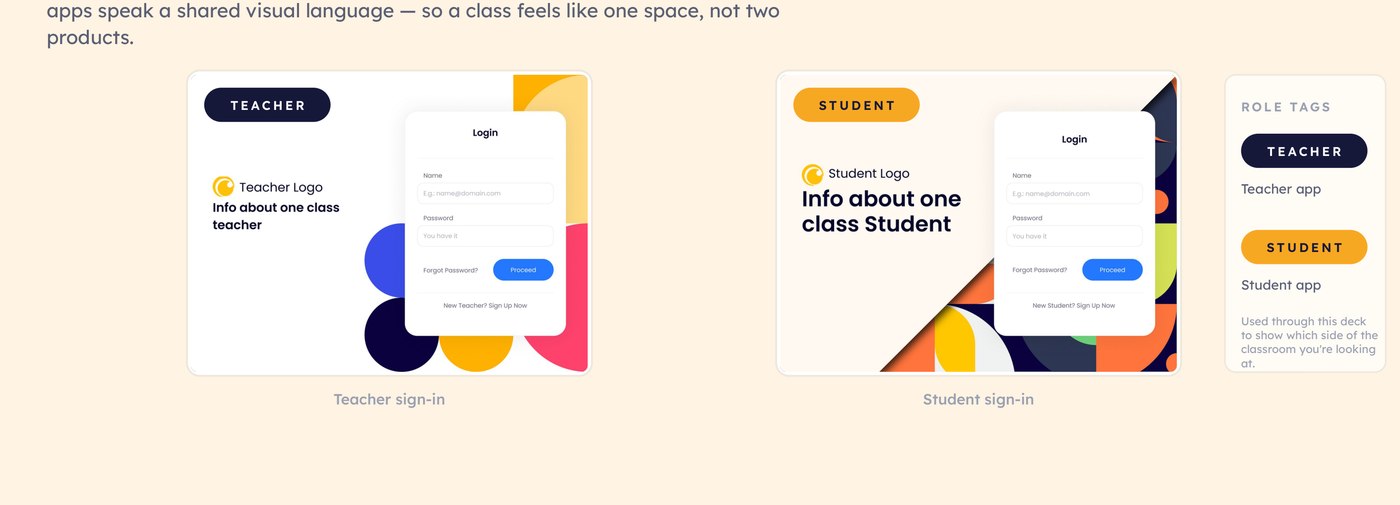
Role tags — a dark navy TEACHER badge and a warm STUDENT badge — are used throughout this deck to show which side of the classroom you're looking at.
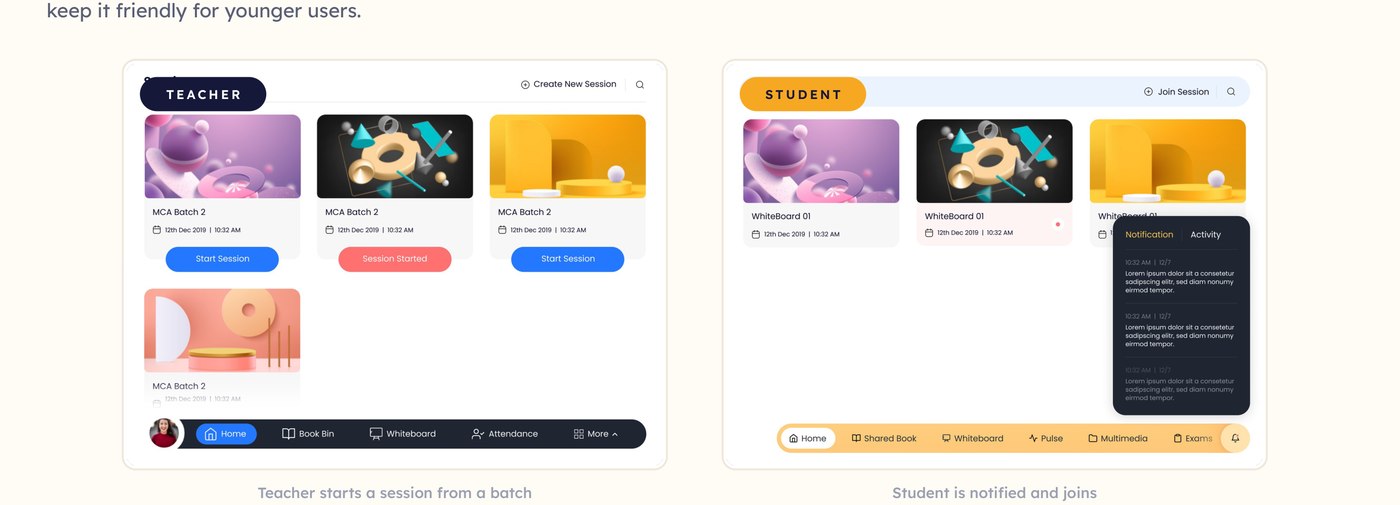
Sessions — start and join
A class begins as a Session. The teacher creates a batch and starts the room; the student gets a nudge and taps in. Picture-led cards keep it friendly for younger users.
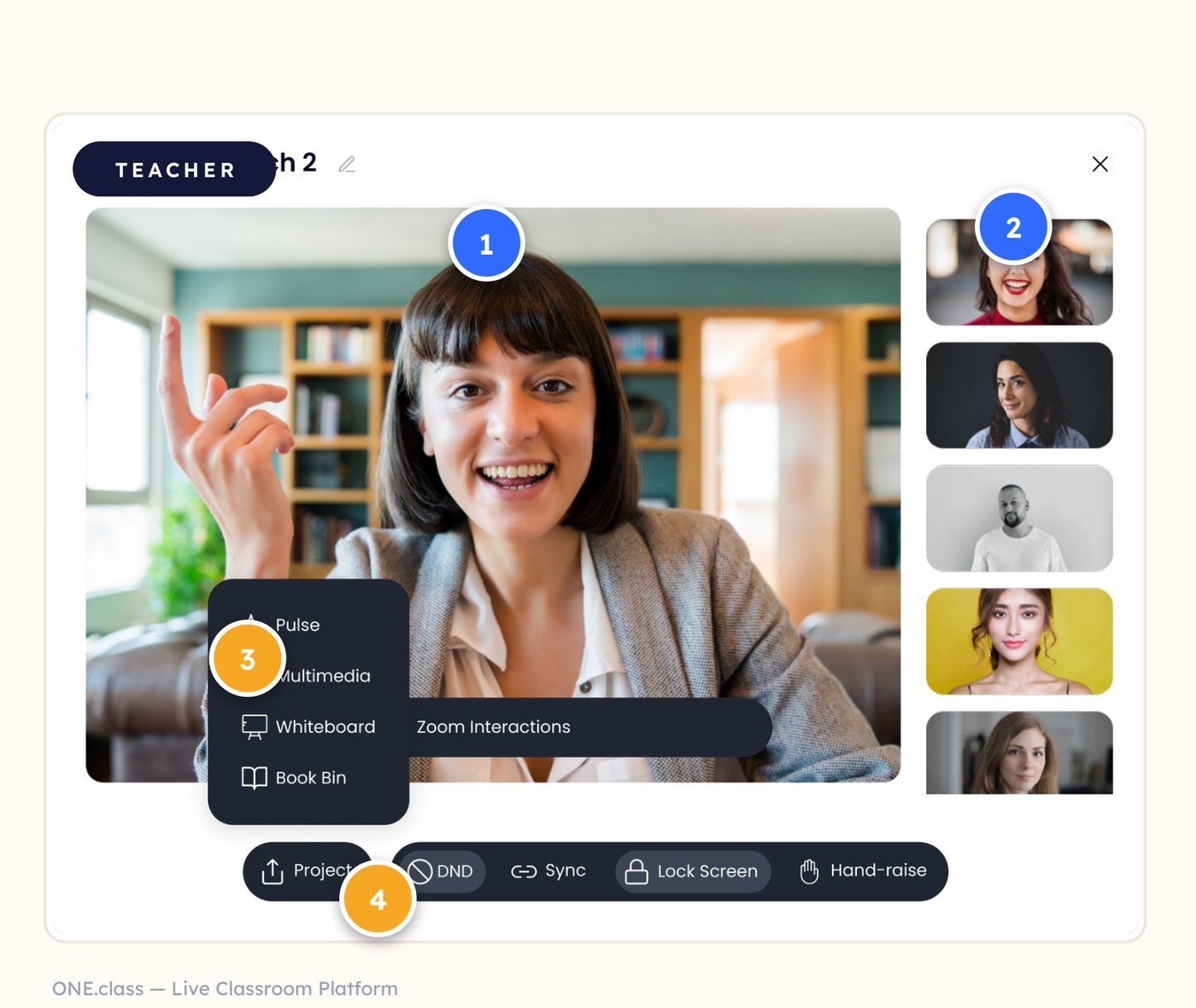
The teacher's command view
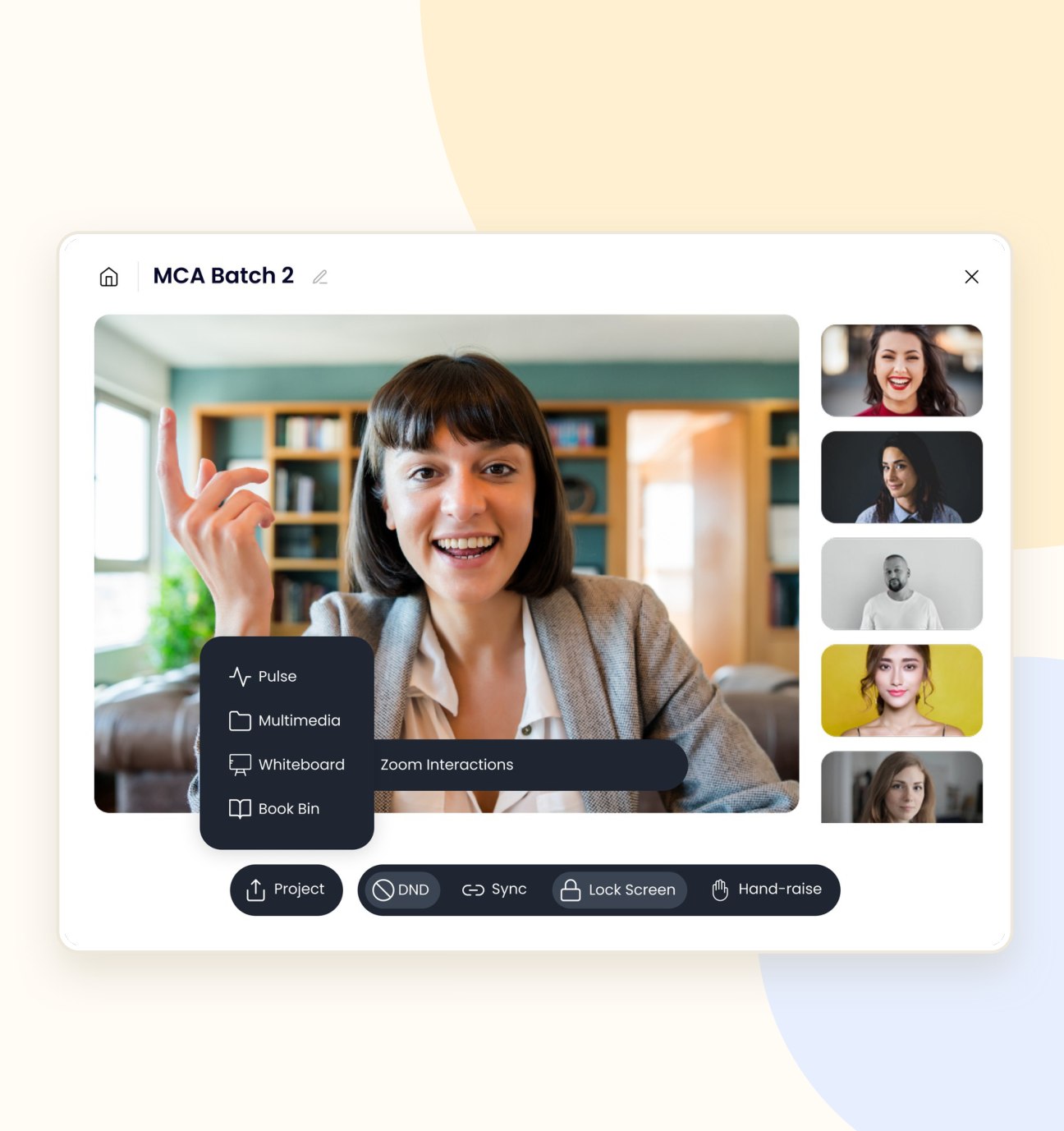
One screen to run the room.
- Live videoThe teacher on camera, front and centre.
- Class rosterEvery student tiled and visible at a glance.
- Teaching toolkitPulse, Multimedia, Whiteboard & Book Bin, one tap away.
- Live controlsProject, Sync, Lock Screen & hand-raise along the bottom.
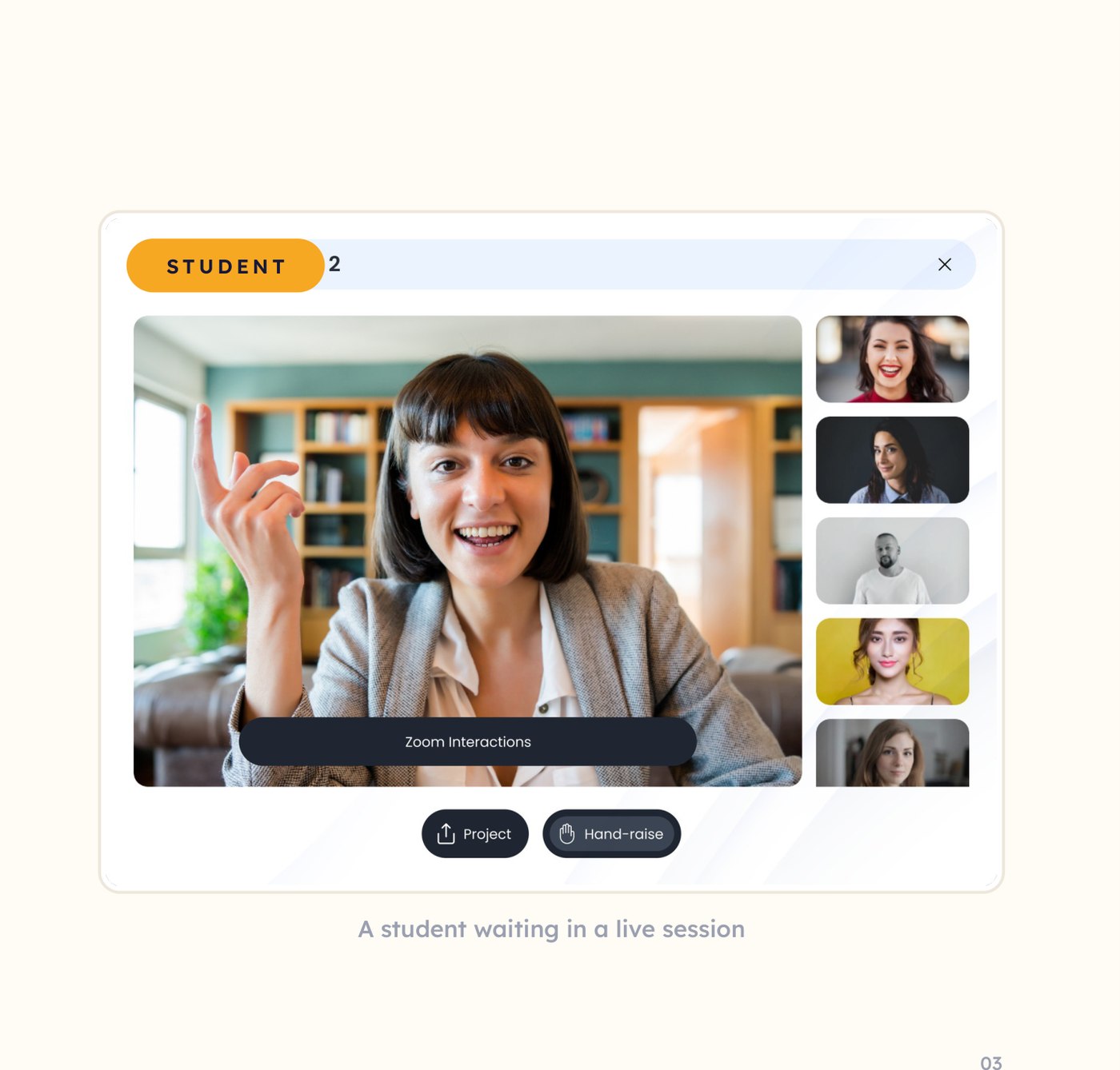
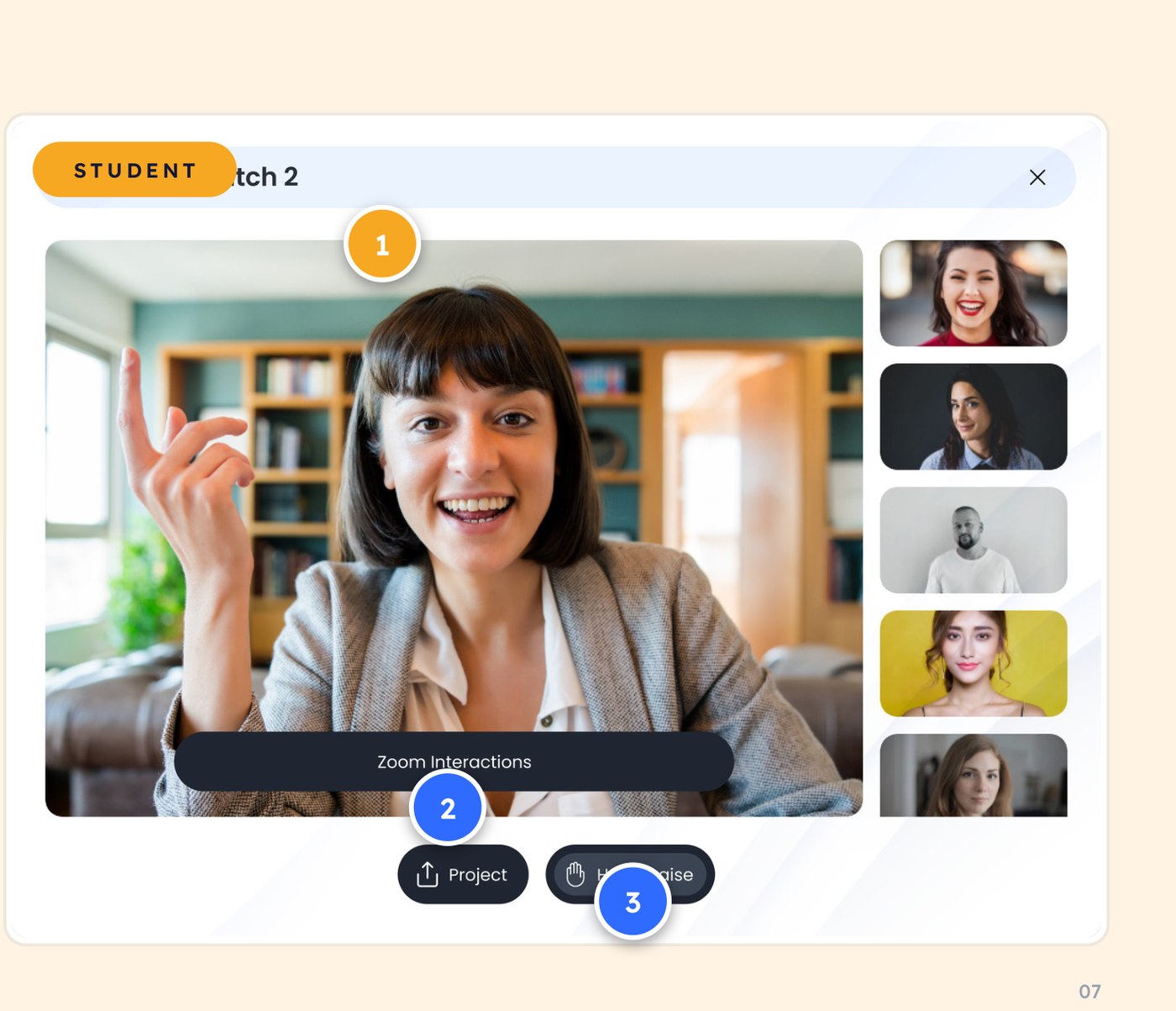
What the student sees
Present, and part of it.
- Watch liveThe teacher’s lesson streams front and centre.
- Follow the projectionWhatever the teacher projects appears right here, live.
- Raise a handOne tap signals the teacher without interrupting.
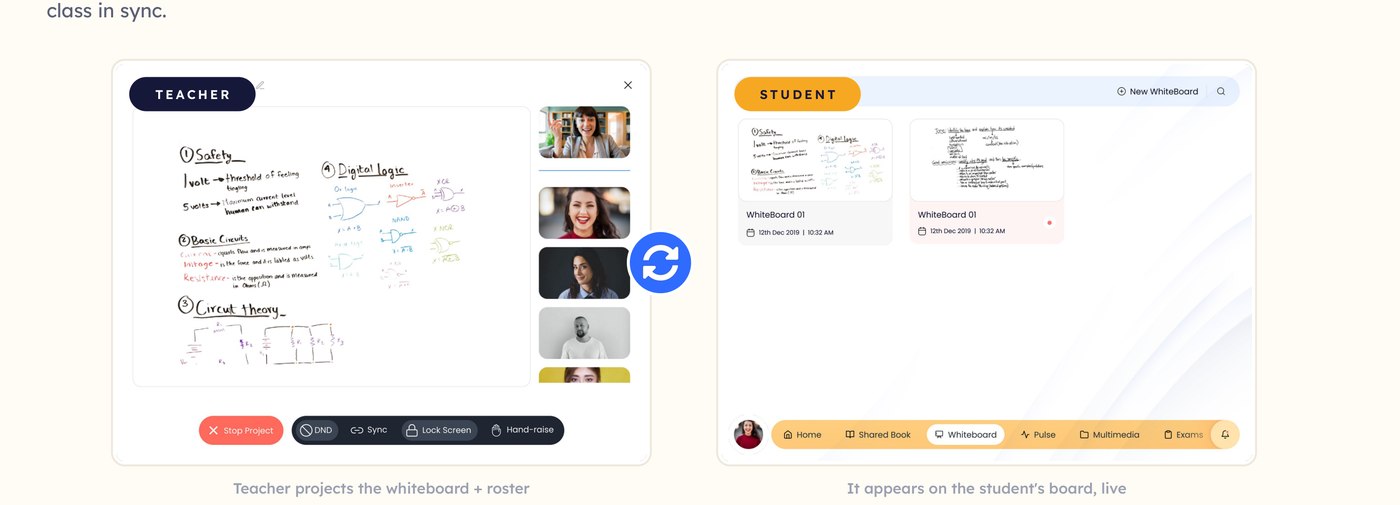
Project once — everyone's in step
The heart of the platform: when the teacher projects the whiteboard or a slide, it mirrors to every student instantly. One action, a whole class in sync.
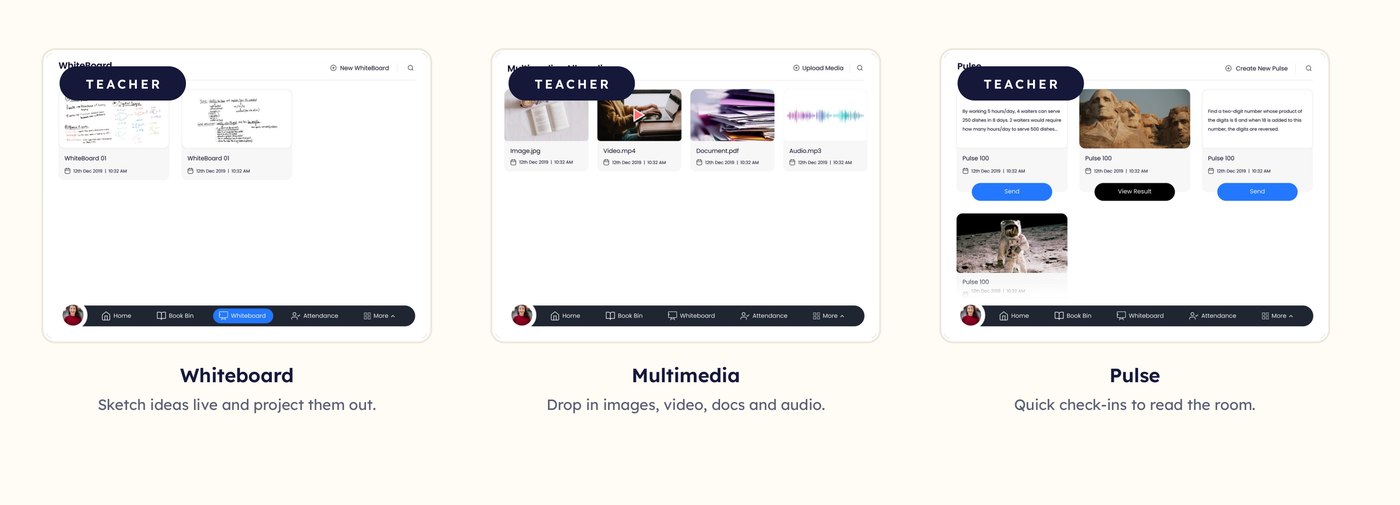
Everything to teach, in one place
Beyond live video, the teacher app bundles the day-to-day tools — so there’s no jumping between apps mid-lesson.
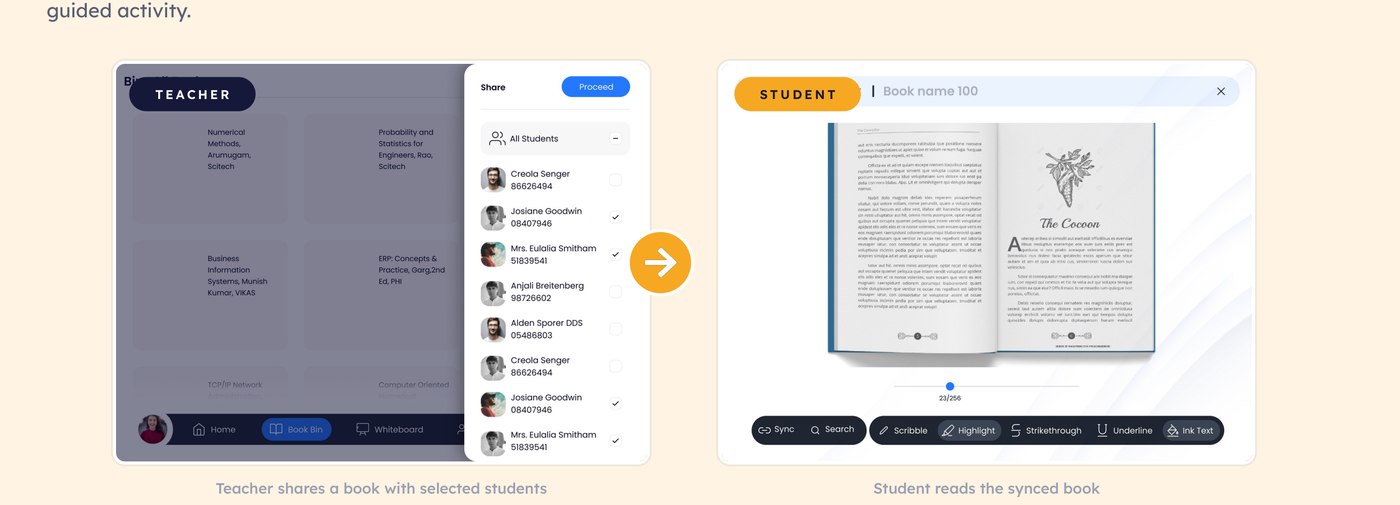
Share a book — read together
The teacher pushes a book to the class; it opens on every student’s device, page-synced, ready to annotate. Reading becomes a shared, guided activity.
Turning answers into a game
The signature engagement moment — a live buzz-in quiz. Speed matters, a leaderboard rewards it, and the whole class leans in.

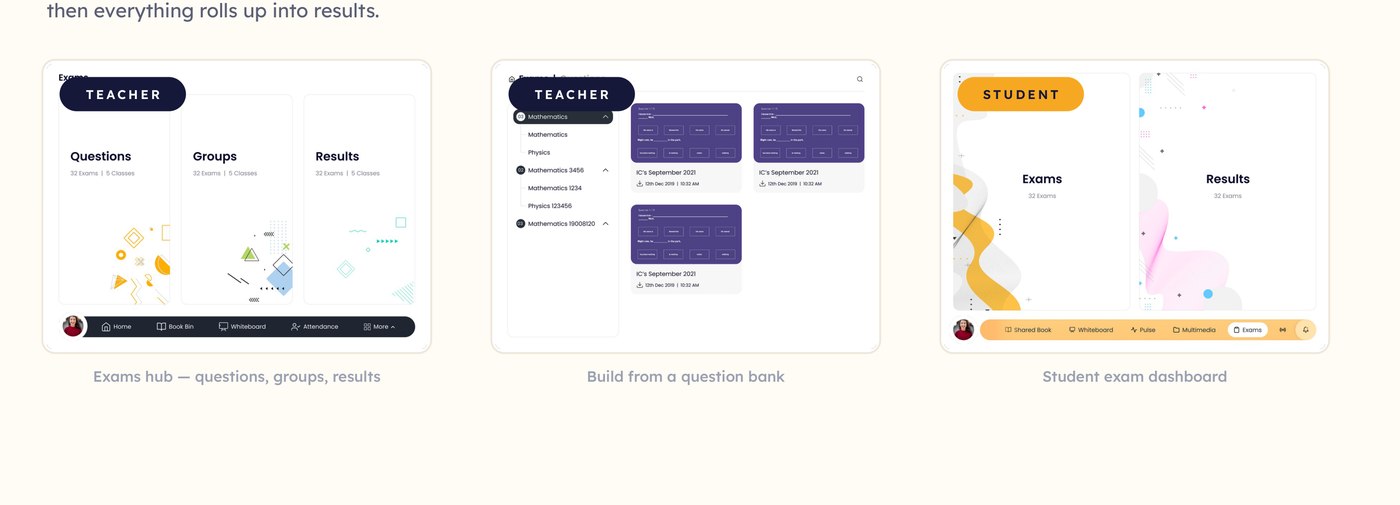
Exams — set and sit
A full assessment loop lives inside the same platform: teachers build question banks and exams; students take them on their own device, then everything rolls up into results.
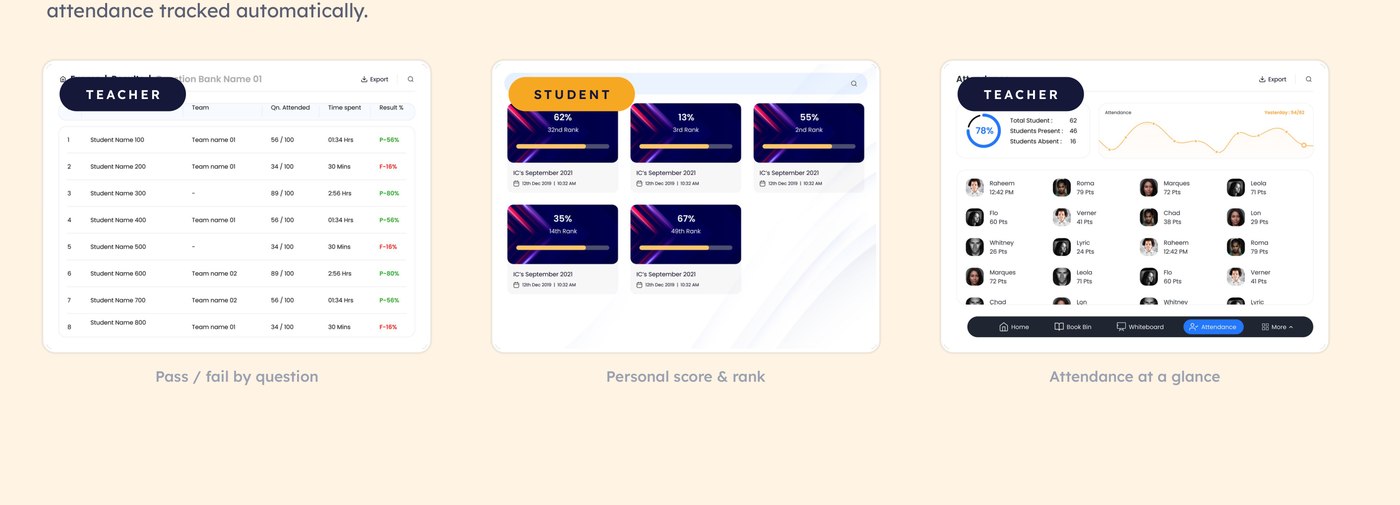
Results, ranks & attendance
After class, the data does the talking — pass/fail breakdowns for the teacher, a personal scorecard and rank for the student, and attendance tracked automatically.
One system, two sides
To make two apps feel like one classroom, everything ran on a shared, role-aware system: the same components and type, recoloured by who’s holding the device.
Lexend
A readability-tuned typeface — chosen because the audience is young learners.
Parity
Teacher & student mirror each other.
Playful clarity
Big targets, picture-led, low clutter.
Any platform
One language across iOS, Android, Windows.
Shipped, and shaping classrooms
83%
prefer one.class — of students favour this style over traditional learning.
3
platforms — shipped cross-platform on iOS, Android and Windows from one design system.
US
classrooms — in real use with school students, on a patent-pending platform.
(83% figure is company-reported, not independently audited.)
What I took away
Design the relationship, not two apps
The hard part wasn’t either screen — it was the live link between them.
Know your user's age
Designing for kids pushed every decision toward simpler, bolder, friendlier.
Play earns attention
The Buzzer proved a game loop can do what a lecture can’t — pull focus.
Two apps. One classroom. Go Learn!
Thank you — happy to walk through the live sync, the Buzzer, or any flow in detail.